

Download Auto Context – Firefox extension for quick copy, search & link actions
Overview
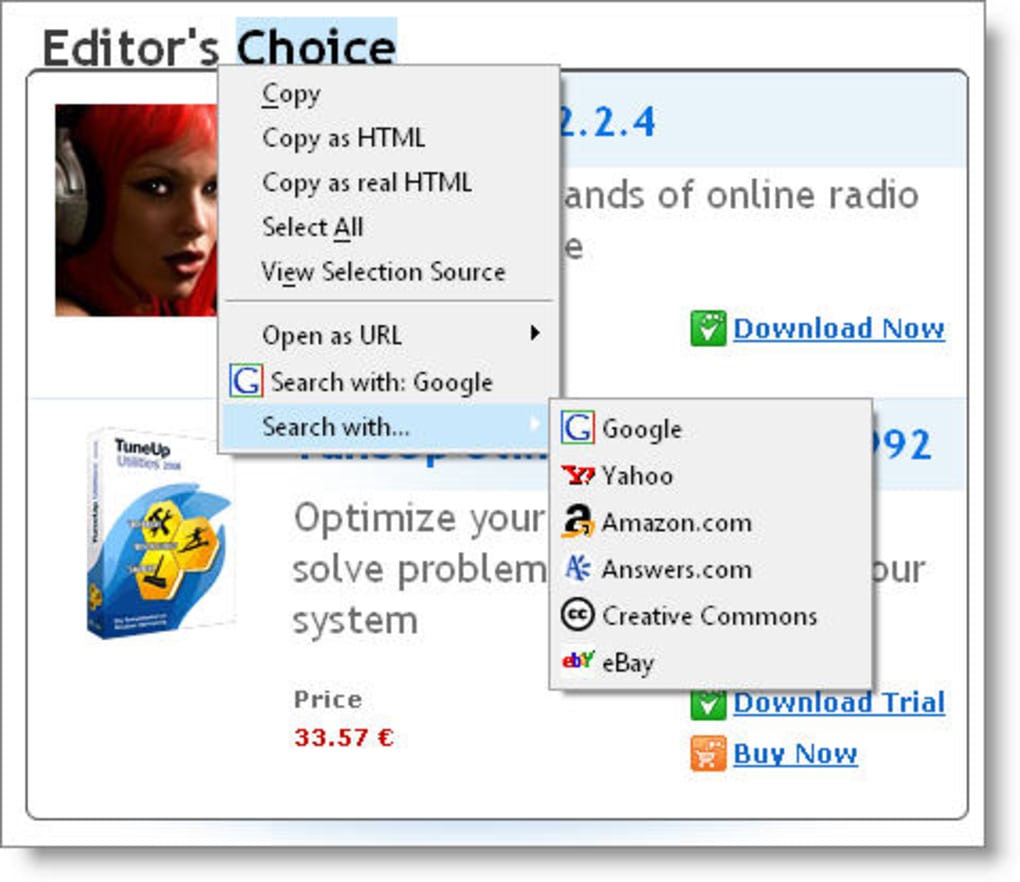
Auto Context is a lightweight Firefox add‑on that transforms the way you interact with selected text on any web page. When you highlight a word, phrase, or paragraph, a custom context menu appears instantly, offering a handful of one‑click actions that would otherwise require multiple steps. The core idea is simple yet powerful: give you the ability to copy text without formatting, copy as HTML, search the term on your favorite engine, or open a hidden URL that isn’t linked in the page source.
Because the extension lives inside the browser, it works offline, respects your privacy, and adds no intrusive ads or telemetry. Auto Context builds on Firefox’s long tradition of extensibility, joining a marketplace that already hosts thousands of tools ranging from language translators to download managers. By focusing on the most common tasks—copying clean text and quick look‑ups—Auto Context fills a niche that many users overlook, especially those who spend hours researching, writing, or compiling information from multiple sites.
The add‑on is free, regularly updated, and fully compatible with the latest Firefox releases on Windows, macOS, and Linux. Its minimalistic design ensures that the extra menu does not clutter the screen, while the underlying code follows Mozilla’s security guidelines, making it a safe choice for both casual browsers and power users alike.
Key Features & Functionalities
- Copy without formatting: Removes all HTML tags, styles, and invisible characters, delivering plain text that can be pasted directly into documents or code editors.
- Copy as HTML: Preserves the original markup, allowing you to keep links, bolding, and other styling when pasting into rich‑text editors.
- Instant web search: Sends the selected term to your default search engine with a single click, saving you the time of opening a new tab and typing the query.
- Open hidden URLs: Detects URLs that appear only in the page source (e.g., API endpoints or hidden download links) and opens them instantly.
- Customizable shortcuts: Users can assign keyboard shortcuts to each action via Firefox’s built‑in shortcut manager.
- Lightweight footprint: The extension adds less than 200 KB to the browser, ensuring fast load times and minimal impact on system resources.
- Automatic updates: Receives frequent security patches and feature enhancements through Mozilla’s add‑on repository.
- Cross‑platform support: Works seamlessly on Windows, macOS, and Linux versions of Firefox, with the same feature set across all platforms.
Installation, Usage & Compatibility
How to Install Auto Context
Installing Auto Context is a straightforward three‑step process. First, open Firefox and navigate to the official Mozilla Add‑ons store. Search for “Auto Context” or follow the direct link provided on the developer’s website.
Second, click the “Add to Firefox” button; a confirmation dialog will appear, asking for permission to access your browsing data. Review the permissions—read/write access to the page content is required for the extension to manipulate selected text. Click “Add” to complete the installation.
Finally, restart Firefox (or simply refresh any open tabs) to activate the extension. A small icon will appear in the toolbar, indicating that Auto Context is ready for use.
Using the Extension Effectively
Once installed, the extension works automatically—no extra configuration is needed. Highlight any text on a web page, then right‑click (or use the context‑menu key) to reveal the Auto Context menu. You’ll see options such as “Copy Plain Text,” “Copy as HTML,” “Search ‘[selected]’,” and “Open Hidden URL.” Clicking any option performs the action instantly.
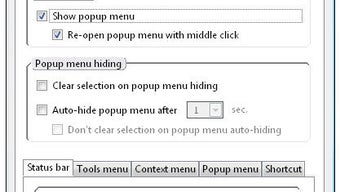
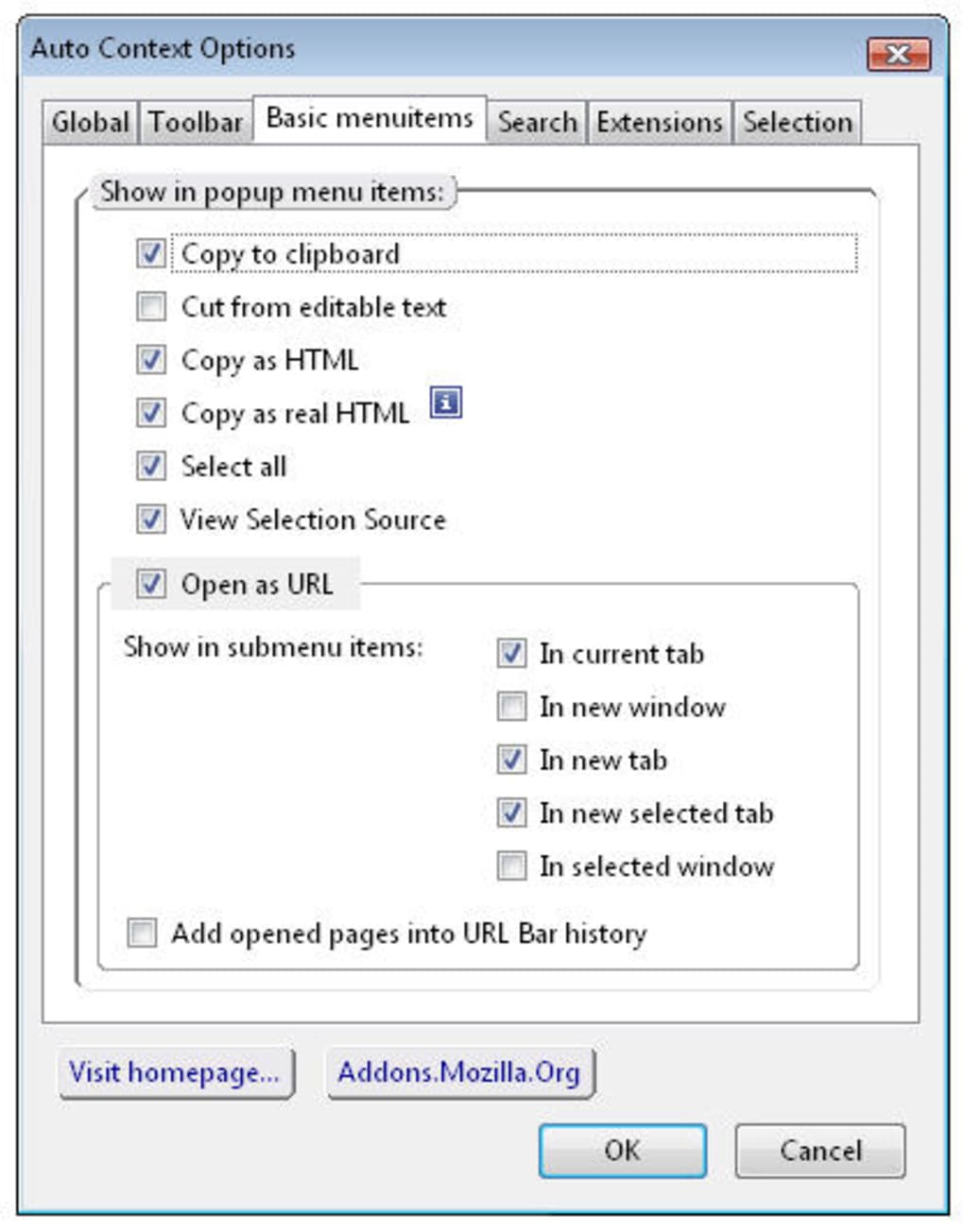
For power users, you can customize the order of menu items via the add‑on’s options page, accessible through the toolbar icon. Keyboard shortcuts can also be defined: go to about:addons → Auto Context → Preferences → Shortcuts and assign keys like Ctrl+Shift+C for plain‑text copy. This flexibility speeds up research workflows, especially when handling large volumes of data across multiple tabs.
Operating System Compatibility
Auto Context is built on Firefox’s WebExtension API, which guarantees full compatibility with the latest stable releases of Firefox on Windows 10/11, macOS Monterey and later, as well as popular Linux distributions (Ubuntu, Fedora, Debian, etc.). Because the extension runs inside the browser sandbox, it does not depend on any external libraries or system‑level components, making it equally reliable on 64‑bit and 32‑bit architectures. Users on older Firefox ESR (Extended Support Release) versions may experience limited functionality, but the core copy and search features remain operational.
Pros, Cons & Frequently Asked Questions
Pros
- Instant access to copy‑and‑paste utilities without leaving the page.
- Zero‑cost, free to use with no hidden premium tiers.
- Light on resources – negligible impact on CPU and memory.
- Secure and privacy‑friendly; no data is sent to third‑party servers.
- Regular updates via Mozilla’s add‑on ecosystem.
Cons
- Lacks advanced text‑processing features (e.g., regex replace) found in dedicated clipboard managers.
- Only works within Firefox; no Chrome or Edge version is currently available.
- Customization UI is minimal; power users may desire a more robust settings panel.
FAQ
Is Auto Context safe to use?
Yes. The extension follows Mozilla’s security guidelines, runs in a sandboxed environment, and does not collect or transmit personal data. All source code is publicly available for review.
Can I customize the search engine used by Auto Context?
Absolutely. The extension respects the default search engine set in Firefox. Change it via Options → Search → Default Search Engine and Auto Context will use the new provider automatically.
Does Auto Context work on mobile Firefox?
Currently the add‑on is only available for desktop Firefox. Mobile versions of Firefox have a limited add‑on API, and Auto Context has not been ported yet.
How do I report a bug or request a new feature?
Visit the official GitHub repository linked from the add‑on’s page. Use the “Issues” section to file bugs or suggest enhancements. The developer actively monitors feedback.
Is there a way to disable Auto Context on specific sites?
Yes. In the extension’s options you can add domain names to a “site‑block list.” Auto Context will be inactive on those pages while remaining fully functional elsewhere.
Overall Rating: 4.5/5 – Auto Context delivers exactly what its description promises: fast, reliable, and secure text‑handling tools directly within Firefox.
Conclusion & Call to Action
For anyone who spends a significant amount of time browsing, researching, or drafting content, Auto Context is a game‑changer. It removes the friction of manually cleaning copied text, eliminates extra tabs for quick searches, and even uncovers hidden URLs that would otherwise stay buried in source code. While it does not replace full‑featured clipboard managers, its simplicity and zero‑cost model make it an indispensable companion for everyday web work. The extension’s lightweight design ensures it won’t slow down your browsing experience, and its regular updates keep it secure and compatible with the latest Firefox releases. If you’re looking for a free, secure, and instantly useful add‑on to boost productivity, click the download button below, install Auto Context, and start streamlining your copy‑and‑search workflow today.







